Leaderboards are one of the fundamental aspects of mobile and online games. They do not only contribute to higher player engagement but also their motivation. It is not about enabling the comparison of the scores of individual players with the others; the leaderboards create a community as well as competition. In this article, we will walk you through a process of adding leaderboards to your Unity game so that you can make the experience for your players more engaging.
Why Do Leaderboards Matter?
Now, here’s why leaderboards are so important for your game:
- Better Competition: Gamers are competitive in nature. Leaderboards let them see themselves rank with others and seek to top the charts.
- Greater Retention: If the leaderboards update regularly, it beckons the gamer back into the game to climb higher and look for better position.
- Community Building: Leaderboards will bring a shared sense of community for players, having shareable achievements and a competition mechanism against one another.
- Reward Systems: Requiring rewards to be awarded to the top-scoring players further increases engagement. If there are clear advantages of playing, customers will play more of your game.
Setup of Unity Leaderboards
Setup of Unity Gaming Services
To incorporate leaderboards in Unity, you will first need to set up Unity Gaming Services. This entails the following steps:
- Create a new Unity Project: You start Unity Hub and create a new project or open an existing one.
- Enable Unity Gaming Services: In the Unity Editor, you will see the Services tab. Activate Unity Gaming Services. The activation to the feature should then allow you to continue proceeding to access several features of services, which includes accessing leaderboards.
- Install the Leaderboard SDK: You can install the Leaderboard SDK via the Package Manager:
- Open the Package Manager (
Window > Package Manager). - Search for
com.unity.services.leaderboardsand install it.
- Open the Package Manager (
Creating Your First Leaderboard
Great, you now have UGS installed, and can get underway by designing your first leaderboard.

- Access the Unity Dashboard: Scroll to the Unity Dashboard where you will find your project.
- Find Leaderboards Section: You can find the Leaderboards section from your Products in your Community.
- Create a New Leaderboard: You will now click on the “Create” button, and include other information such as:
- Name: Description of what it will store (for example “High Scores”).
- Sort Order: Decide if it sorts in descending order.
- Update Strategy: Decide which scores to show through best score, last score, and so on.
3. Integrating Leaderboard Functionality in Your Game
With your leaderboard created, it’s time to integrate it into your game.
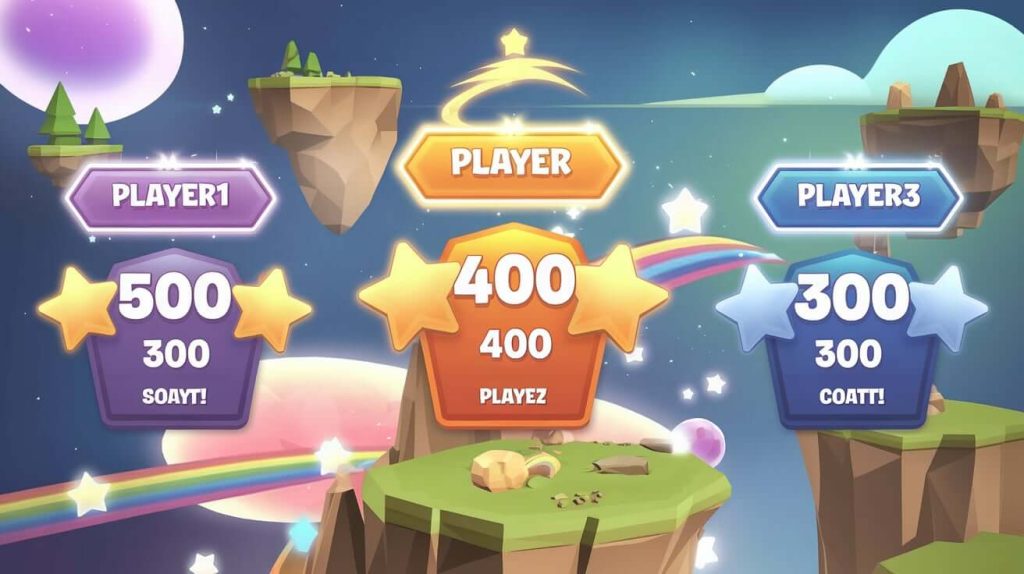
A. Setting Up UI Elements
- Create UI Elements: In your Unity scene you will be creating UI elements that will draw your leaderboard data
- Display names and scores with TextMeshPro or standard UI Text components.
- Consider using Scroll Rects for dynamic lists.
- Design Your Layout: Position your UI elements in an attractive and readable way.
Writing the Leaderboard Manager Script
Now you need a script that will manage interactions with your leaderboard:
using UnityEngine;
using UnityEngine.UI;
using Unity.Services.Leaderboards;
using System.Collections.Generic;

public class LeaderboardManager : MonoBehaviour
{
    public Text leaderboardText;

    async void Start()
    {
        await InitializeLeaderboard();
        await DisplayLeaderboard();
    }

    private async Task InitializeLeaderboard()
    {
        // Initialize services
        await LeaderboardService.Instance.InitializeAsync();
    }

    private async Task DisplayLeaderboard()
    {
        var leaderboard = await LeaderboardService.Instance.GetLeaderboardAsync("YourLeaderboardID");
        foreach (var entry in leaderboard)
        {
            leaderboardText.text += $"{entry.PlayerName}: {entry.Score}\n";
        }
    }
}
4. Submitting Scores
To make your leaderboard functional, you need to submit player scores:
public async void SubmitScore(int score)
{
    var playerName = "Player1"; // Replace with actual player name
    await LeaderboardService.Instance.SubmitScoreAsync("YourLeaderboardID", playerName, score);
}
5. Fetching Scores
You might want to fetch scores periodically or when certain events occur:
private async Task FetchScores()
{
    var scores = await LeaderboardService.Instance.GetScoresAsync("YourLeaderboardID");

    foreach (var score in scores)
    {
        // Update UI or handle scores as needed
    }
}
Advanced Features
Tiers and Buckets
Unity will automatically sort the players into tiers or buckets based on their score. This feature can further augment the competition through leagues:
- In the dashboard, you can create multiple tiers by setting score thresholds.
- Add logic to your game that shows tier information with player scores.
Leaderboard Reset
To keep your game fresh and maintain competition over time, you can reset leaderboards at intervals:
- You can allow for a reset option from the admin dashboard, too. Alternatively, you can add a button to your game that allows a manual reset of scores by your admins.
Reward Integration
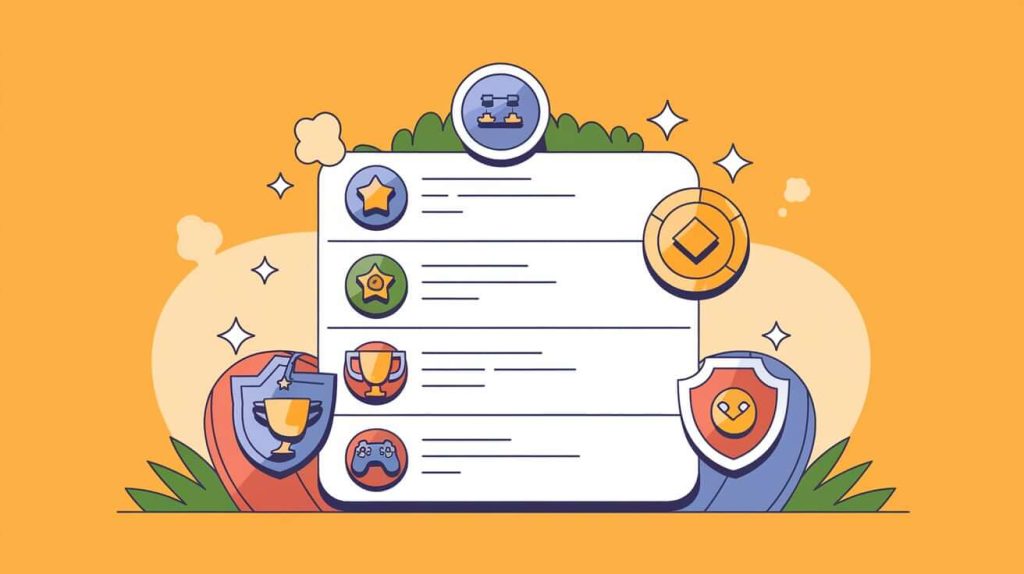
Reward through position on a leaderboard will motivate even high levels of engagement:
- Take advantage of UGS’s Cloud Code or Economy services to dispense in-game currency or items that are assigned to position players on the leaderboard.
Testing Your Implementation
Before launching your game, test the leaderboard implementation extensively:
- Test Player Actions: Test through play with simulated score submissions from a variety of players.
- Data validation: Ensure that the scores are indeed displayed on the leaderboard correctly.
- UI Responsiveness: Ensure that UI updates are smooth and without lags.
Conclusion
Leaderboards in your Unity game are going to give high engagement and competition as well among the users of the game. With Unity Gaming Services, you may implement super leaderboard functionality and don’t need to track just a score but enhance the experience from gaming totally.
With all this, you now have all the tools necessary to create an engaging leaderboard system within your game. Remember these features as you implement these features that regular updates and community interaction are key to maintaining an active player base.
Additional Resources
- Unity Documentation on Leaderboards
- Unity Community Forums
- YouTube Tutorials on Implementing Leaderboards
By following this guide, you’re well on your way to creating an engaging gaming experience that keeps players coming back for more!