Introduction
In today’s interconnected world, the gaming market is truly global. To maximize your game’s reach and impact, it’s essential to break down language barriers and make your creation accessible to players worldwide. This is where Unity Localization comes into play. Unity’s official Localization package provides a robust and streamlined solution for translating all aspects of your game, from text and UI elements to audio and even visual assets.
This comprehensive guide will walk you through the process of implementing Unity game localization, enabling you to translate your game easily and efficiently. We’ll cover the core concepts, step-by-step setup, practical examples for localizing various content types, and essential best practices to ensure a smooth and effective localization workflow. By the end of this article, you’ll be equipped to deliver a truly global gaming experience.
Key Keywords for this topic:
- Unity Localization
- Game Localization
- Translate Unity Game
- Unity Multi-language
- Localization Package Unity
- Global Game Development
Why Localize Your Unity Game?
Localization is more than just translating text; it’s about adapting your game to resonate with different cultures and regions. The benefits of localizing your Unity game are substantial:
- Expanded Market Reach: By supporting multiple languages, you open your game to a significantly larger global audience. This directly translates to increased downloads, sales, and player engagement in new markets.
- Enhanced Player Experience: Players are more likely to enjoy and continue playing a game that speaks their language. A localized experience feels more personal and immersive, fostering a stronger connection with your audience.
- Increased Revenue Potential: Tapping into new markets with localized content can lead to a substantial boost in revenue. Many non-English speaking regions represent massive untapped potential for game developers.
- Improved User Reviews and Ratings: Games with good localization often receive higher ratings and more positive reviews, as players appreciate the effort put into making the game accessible to them.
- **Futfuture-proofing Your Game: Designing your game with localization in mind from the outset makes it much easier to add new languages and content in the future, saving time and resources down the line.

Getting Started with Unity Localization: A Step-by-Step Guide
Unity’s official Localization package simplifies the process of making your game multilingual. Let’s walk through the essential steps to get it up and running.
Step 1: Install the Localization Package
The first step is to add the Localization package to your Unity project:
- Open your Unity project.
- Navigate to Window > Package Manager.
- In the Package Manager window, ensure Unity Registry is selected in the dropdown.
- Search for “Localization” and click Install.
Step 2: Create Localization Settings
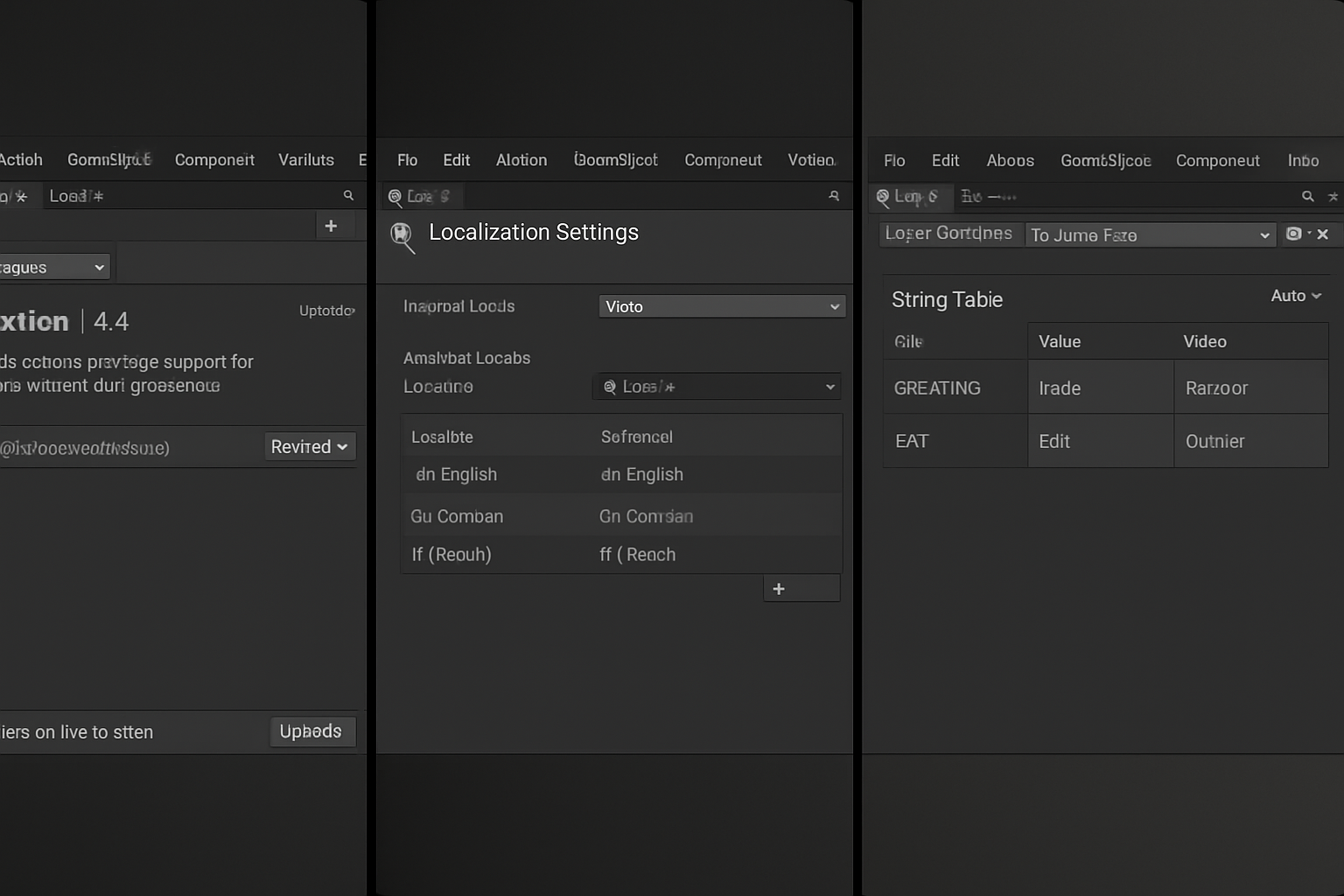
After installing the package, you need to create the core Localization Settings asset, which manages all your localized data.
- Go to Edit > Project Settings > Localization.
- Click the Create button next to “Localization Settings” to generate a new
LocalizationSettingsasset in your project. - In the Localization Settings window, you’ll see a section for Locales. Click + to add the languages you want to support (e.g., English, Spanish, French). You can choose from a predefined list or create custom locales.
- Set a Default Locale from the dropdown. This is the language your game will use if no other language is explicitly selected or available.
Step 3: Localize Text (String Tables)
Text is often the most common element to localize. The Localization package uses String Tables to store translated text.
- In the Localization Settings window, go to the String Tables tab.
- Click Create New Table to create a new String Table asset (e.g.,
UI_Text). - Double-click the newly created String Table to open it. Here, you can add Keys (unique identifiers for your text) and enter the translated Values for each locale. Key English Value Spanish Value French Value
game_titleMy Awesome Game Mi Juego Genial Mon Super Jeuplay_buttonPlay Jugar Jouersettings_menuSettings Ajustes Paramètres - To use localized text in your UI, add a
Localize String Eventcomponent to your UI Text (TextMeshPro or UI Text) GameObjects. Drag the appropriate String Table and select the Key you want to display.
Step 4: Localize Assets (Asset Tables)
Beyond text, you might need to localize images, audio clips, or even prefabs. This is done using Asset Tables.
- In the Localization Settings window, go to the Asset Tables tab.
- Click Create New Table to create a new Asset Table asset (e.g.,
Game_Assets). - Double-click the Asset Table to open it. Similar to String Tables, you add Keys and assign the corresponding localized assets for each locale. Key English Asset (e.g., Sprite) Spanish Asset (e.g., Sprite)
main_logoAssets/Sprites/logo_en.pngAssets/Sprites/logo_es.pngaudio_introAssets/Audio/intro_en.mp3Assets/Audio/intro_es.mp3 - To use localized assets, you can use the
Localize Texture Event,Localize Audio Event, orLocalize Sprite Eventcomponents, or load them via script.
Step 5: Switching Locales at Runtime
Players will need a way to change the game’s language. You can do this programmatically:
using UnityEngine;
using UnityEngine.Localization.Settings;
using System.Collections;

public class LanguageSwitcher : MonoBehaviour
{
    public void ChangeLanguage(int localeIndex)
    {
        StartCoroutine(SetLocale(localeIndex));
    }

    IEnumerator SetLocale(int localeIndex)
    {
        yield return LocalizationSettings.InitializationOperation; // Ensure settings are initialized
        LocalizationSettings.SelectedLocale = LocalizationSettings.AvailableLocales.Locales[localeIndex];
        Debug.Log($"Language changed to: {LocalizationSettings.SelectedLocale.Identifier.CultureInfo.NativeName}");
    }

    // Example usage: Call ChangeLanguage(0) for English, ChangeLanguage(1) for Spanish, etc.
    // You can hook this up to UI buttons.
}
Explanation:
LocalizationSettings.InitializationOperation: Ensures the localization system is ready before attempting to change locales.LocalizationSettings.AvailableLocales.Locales: Provides a list of all available locales you’ve added in the settings.LocalizationSettings.SelectedLocale: Sets the active locale, which automatically updates all localized elements in your game.“`
Best Practices and Advanced Tips for Effective Unity Localization
While the Unity Localization package makes the process straightforward, adopting certain best practices can significantly enhance your localization efforts and prevent common pitfalls:
1. Plan Early and Design for Localization
Integrating localization from the beginning of your project is far more efficient than retrofitting it later. Design your UI layouts to accommodate varying text lengths in different languages. For instance, German words can be significantly longer than their English counterparts, requiring more space. Consider flexible UI elements that can expand or contract as needed.
2. Use Placeholders for Dynamic Text
Many sentences contain dynamic elements like player names, scores, or item counts. The Localization package supports placeholders (e.g., {0}, {player_name}) within your string entries, allowing you to insert dynamic data at runtime without breaking translations. This is crucial for maintaining grammatical correctness across languages.
3. Context is King for Translators
Provide as much context as possible to your translators. A single word can have multiple meanings depending on its usage. Screenshots, notes, and clear descriptions for each string key can drastically improve translation quality and reduce back-and-forth.
4. Professional Translation Services
While machine translation can be a starting point, for a high-quality, professional game, consider hiring native-speaking translators or a specialized game localization agency. They understand cultural nuances, idioms, and gaming terminology, ensuring your game feels natural in every language.
5. Test Thoroughly in All Locales
Always test your localized game extensively in every supported language. Look for:
- Text Overflow: Does any text run outside its designated UI element?
- Font Issues: Are all characters displayed correctly? Are there any missing glyphs?
- Cultural Appropriateness: Are there any images, symbols, or phrases that might be offensive or misunderstood in a particular culture?
- Functionality: Does the game still work as expected after language changes?
6. Version Control for Localization Data
Treat your localization tables (String Tables and Asset Tables) like any other critical game asset and keep them under version control. This ensures that changes are tracked, and you can easily revert to previous versions if needed.
7. Localizing Audio and Video
For voiceovers or cinematic sequences, you have a few options:
- Subtitles: The simplest approach, using localized text over original audio.
- Dubbing: Replacing original audio with translated voiceovers. This is more expensive but offers a fully localized audio experience.
- **Vovoice-over: A single narrator speaks over the original audio, which is lowered in volume.
Conclusionion
Localization is no longer an option but a necessity for game developers aiming for global success. Unity’s official Localization package provides a powerful, integrated, and user-friendly solution to translate your game easily, ensuring your creation can reach and resonate with players across the world.
By following the steps outlined in this guide and adopting the recommended best practices, you can streamline your localization workflow, enhance the player experience, and unlock new markets for your game. Embrace localization, and watch your game’s global footprint expand.
Start localizing your Unity game today and connect with players everywhere!