Introduction
Imagine a game where mistakes aren’t permanent, where every misstep can be undone with a flick of a button, allowing for endless experimentation and strategic depth. This captivating concept, famously popularized by games like Braid, introduces a powerful rewind mechanic that transforms gameplay into a dynamic dance with time. Implementing such a feature in Unity can unlock incredible design possibilities, from intricate puzzle-solving to forgiving action sequences.
This guide will delve into the fascinating world of time manipulation in Unity, specifically focusing on how to create a Braid-style rewind system. We’ll explore the core principles of recording and replaying game states, provide practical code examples, and discuss best practices to integrate this unique mechanic seamlessly into your projects. Whether you’re aiming for a puzzle platformer, a strategic action game, or simply want to add a unique debugging tool, mastering Unity rewind mechanics will elevate your game development skills.
Key Keywords for this topic:
- Unity Rewind Mechanic
- Time Manipulation Unity
- Braid-Style Rewind
- Game State Recording
- Unity Time Travel
- Gameplay Rewind
The Core Concept: Recording and Replaying States
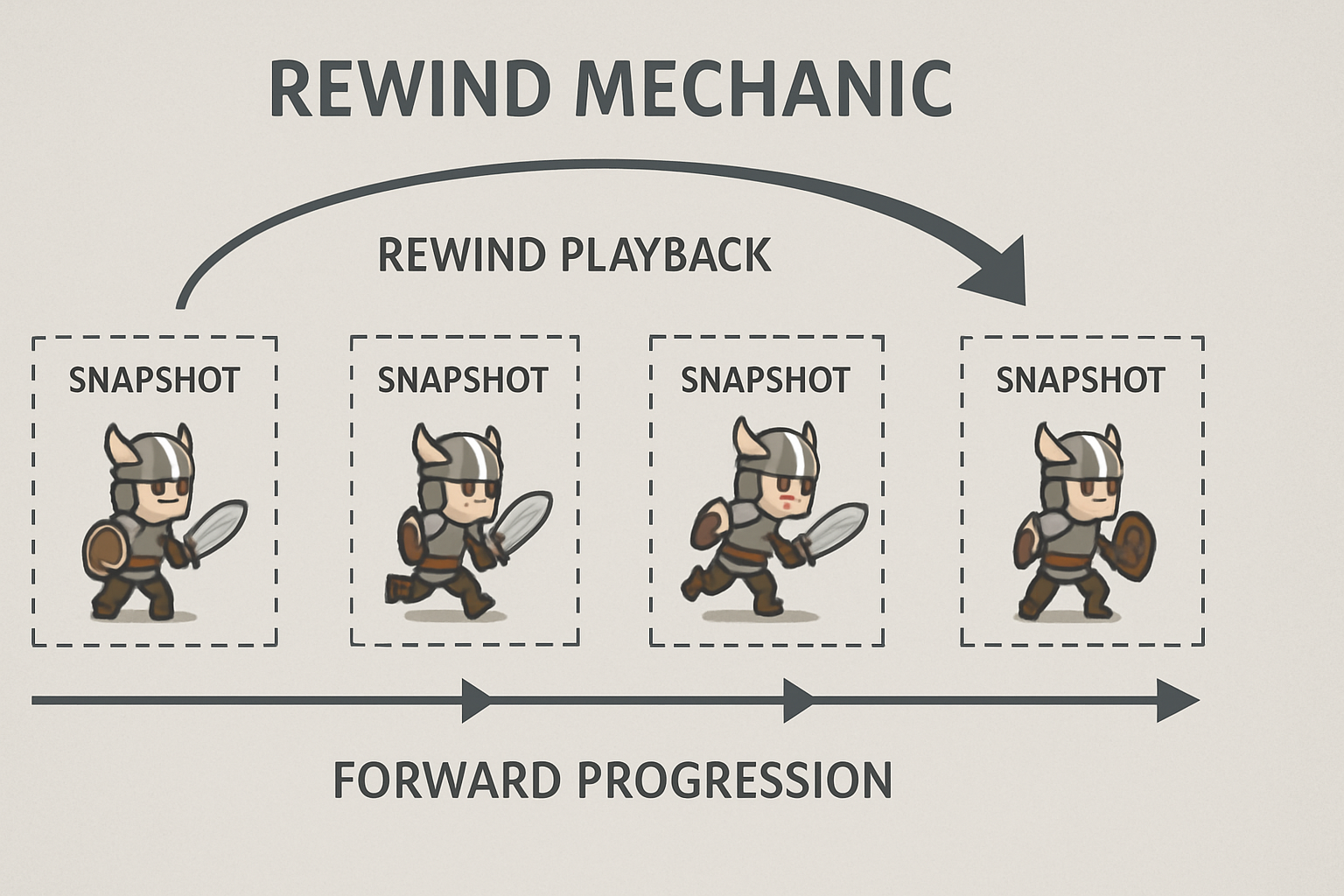
At its heart, a rewind mechanic functions by continuously recording the state of relevant game objects over time. When the player initiates a rewind, the game doesn’t simply reverse; instead, it replays the previously recorded states in reverse order. This distinction is crucial for understanding how to implement it effectively.
Think of it like a video recorder. When you record, you’re capturing frames of information. When you rewind, you’re playing those frames backward. In a game, these “frames” are snapshots of your game objects’ properties at specific moments in time.
What to Record?
To implement a rewind system, you need to identify the properties of your game objects that change over time and are essential for recreating their past state. Common properties include:
- Transform: Position, Rotation, Scale (for movement and orientation)
- Rigidbody: Velocity, Angular Velocity (for physics-driven movement)
- Animator: Current animation state, speed (for character animations)
- Health/Mana: Current values (for player or enemy stats)
- Custom States: Any other game-specific variables that define an object’s behavior or appearance (e.g., whether a door is open/closed, if an enemy is alive/dead).
Recording too much data can lead to performance issues and large memory consumption, while recording too little will result in an inaccurate rewindThe key is to find a balance based on your game’s needs.
How to Store Data?
The recorded states need to be stored efficiently. A common approach is to use a List or a Queue (or a custom circular buffer for fixed-size history) to store struct or class objects, each representing a snapshot of an object’s state at a given timestamp. Each snapshot would contain the relevant properties identified above.
Implementing Rewind Mechanics in Unity: A Practical Approach
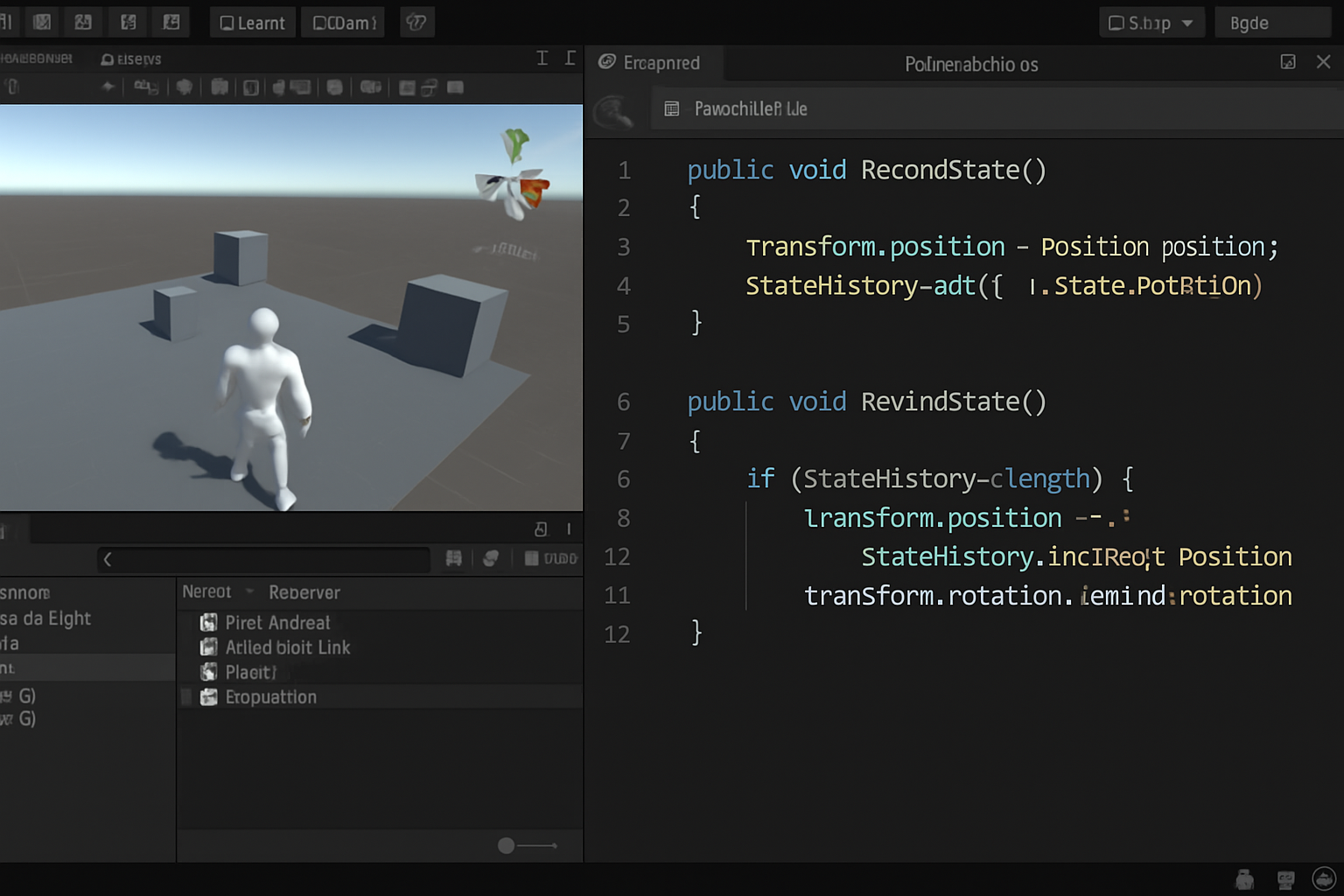
Let’s translate the core concepts into a practical Unity implementation. We’ll create a simple system that records and replays the position and rotation of a GameObject.
1. Define a State Class
First, we need a class to hold the recorded state of our game objects. For simplicity, we’ll just store position and rotation.
using UnityEngine;

// Serializable to allow Unity to save/load it if needed, though not directly used for rewind persistence here
[System.Serializable]
public class TransformState
{
    public Vector3 position;
    public Quaternion rotation;
    public float timestamp;

    public TransformState(Vector3 pos, Quaternion rot, float time)
    {
        position = pos;
        rotation = rot;
        timestamp = time;
    }
}
2. Create a Rewindable Component
This component will be attached to any GameObject you want to make rewindable. It will handle recording its own state and applying past states during rewind.
using UnityEngine;
using System.Collections.Generic;

public class Rewindable : MonoBehaviour
{
    private List<TransformState> history = new List<TransformState>();
    public int maxHistoryFrames = 500; // How many frames to store
    public float recordInterval = 0.05f; // Record state every 0.05 seconds

    private float lastRecordTime;
    private bool isRewinding = false;

    void Update()
    {
        if (!isRewinding)
        {
            if (Time.time - lastRecordTime > recordInterval)
            {
                RecordState();
                lastRecordTime = Time.time;
            }
        }
        else
        {
            RewindState();
        }
    }

    void RecordState()
    {
        if (history.Count >= maxHistoryFrames)
        {
            history.RemoveAt(0); // Remove oldest state if history is full
        }
        history.Add(new TransformState(transform.position, transform.rotation, Time.time));
    }

    void RewindState()
    {
        if (history.Count > 0)
        {
            TransformState state = history[history.Count - 1];
            transform.position = state.position;
            transform.rotation = state.rotation;
            history.RemoveAt(history.Count - 1); // Remove applied state
        }
        else
        {
            // Reached the beginning of recorded history
            StopRewind();
        }
    }

    public void StartRewind()
    {
        isRewinding = true;
        // Optionally, stop physics or other updates here
        if (GetComponent<Rigidbody>() != null)
        {
            GetComponent<Rigidbody>().isKinematic = true; // Stop physics during rewind
        }
    }

    public void StopRewind()
    {
        isRewinding = false;
        // Resume physics or other updates
        if (GetComponent<Rigidbody>() != null)
        {
            GetComponent<Rigidbody>().isKinematic = false;
        }
    }

    public bool IsRewinding()
    {
        return isRewinding;
    }
}
3. Create a Rewind Manager (Optional but Recommended)
For managing multiple rewindable objects and handling player input, a central manager is beneficial.
using UnityEngine;

public class RewindManager : MonoBehaviour
{
    private Rewindable[] rewindableObjects; // All objects with the Rewindable component

    void Start()
    {
        rewindableObjects = FindObjectsOfType<Rewindable>();
    }

    void Update()
    {
        if (Input.GetKeyDown(KeyCode.R)) // Press 'R' to start rewind
        {
            StartRewind();
        }
        if (Input.GetKeyUp(KeyCode.R)) // Release 'R' to stop rewind
        {
            StopRewind();
        }
    }

    void StartRewind()
    {
        foreach (Rewindable obj in rewindableObjects)
        {
            obj.StartRewind();
        }
    }

    void StopRewind()
    {
        foreach (Rewindable obj in rewindableObjects)
        {
            obj.StopRewind();
        }
    }
}
How to Use:
- Create an empty
GameObjectin your scene and name itRewindManager. Attach theRewindManagerscript to it. - Attach the
Rewindablescript to anyGameObjectyou want to be able to rewind (e.g., your player character, movable boxes, enemies). - Run your game, move the rewindable objects, and then press and hold the ‘R’ key to see them rewind!
Real-world example: Imagine a puzzle game where you need to precisely time jumps or object movements. If you fail, instead of restarting the entire level, you can simply rewind a few seconds, adjust your strategy, and try again. This significantly reduces player frustration and encourages experimentation, much like in Braid.
Advanced Considerations and Best Practices
Implementing a basic rewind mechanic is a great start, but for a robust and performant system, especially in complex games, consider these advanced tips:
1. Optimizing Data Storage and Performance
- Circular Buffer: Instead of a
List, use a fixed-size circular buffer (or ring buffer) for your history. This prevents constant memory reallocations and ensures that older states are automatically overwritten when the buffer is full, maintaining a consistent memory footprint. This is crucial for long rewind durations. - Data Compression: For games with many rewindable objects or very long rewind times, consider compressing the state data. Instead of storing full
Vector3andQuaternionfor every frame, store deltas (changes from the previous frame) or use more compact data types if precision allows. - Selective Recording: Not every property needs to be recorded every frame. For example, if an object is static, its position and rotation don’t need to be recorded. Only record properties that are actively changing.
2. Handling Complex Game States
- Events and Callbacks: When rewinding, you might need to trigger specific events (e.g., replaying sound effects, visual particles). Design your system to allow for callbacks during the rewind process to handle these visual and auditory elements.
- Physics Integration: As shown in the example, disabling physics (
isKinematic = true) during rewind is often necessary to prevent unintended physical interactions. When resuming normal play, ensure physics are re-enabled correctly. - Non-Deterministic Elements: Random numbers, AI decisions, and complex particle systems can be non-deterministic. For a perfect rewind, you might need to record the seed of random number generators or the specific outcomes of AI decisions. Particle systems often require custom handling to rewind their visual effects accurately.
3. User Experience and Visual Feedback
- Visual Cues: Provide clear visual feedback to the player when time is being rewound. This could be a visual effect (e.g., distorted screen, fast-forward/rewind icons), a desaturated color palette, or a ghosting effect on the rewinding objects.
- Audio Cues: Similarly, playing audio in reverse or a distinct sound effect can enhance the feeling of time manipulation.
- Rewind Speed: Allow for variable rewind speeds. Players might want to quickly skip through long periods or precisely scrub through short moments.
4. Integration with Other Systems
- UI Integration: Ensure your UI elements (e.g., timers, score displays) correctly reflect the rewound state. They should update to show past values during rewind.
- Save/Load Systems: A rewind system can complement a traditional save/load system. You might save the entire rewind history at checkpoints, allowing players to resume from a specific point with their rewind capabilities intact.

Conclusionon
Implementing a rewind mechanic in Unity, inspired by the innovative design of Braid, is a challenging yet incredibly rewarding endeavor. It pushes you to think deeply about game state management, data serialization, and efficient performance.
By carefully recording and replaying the essential properties of your game objects, you can create compelling gameplay experiences that offer players unparalleled freedom to experiment, learn from their mistakes, and master your game. Whether for puzzle-solving, action sequences, or even as a powerful debugging tool, time manipulation adds a unique dimension to your Unity projects.
Start experimenting with rewind mechanics today and add a timeless twist to your Unity games!