Introduction
Ever wondered why your Unity game, seemingly small in development, balloons into a massive download for players? A large build size can deter downloads, increase loading times, and consume valuable storage on user devices. For Unity developers, optimizing build size isn’t just a good practice; it’s crucial for delivering a smooth and accessible player experience. This guide will walk you through practical, step-by-step methods to significantly reduce your Unity game’s build size, ensuring your creations are as lean and efficient as possible.
Understanding What Contributes to Build Size
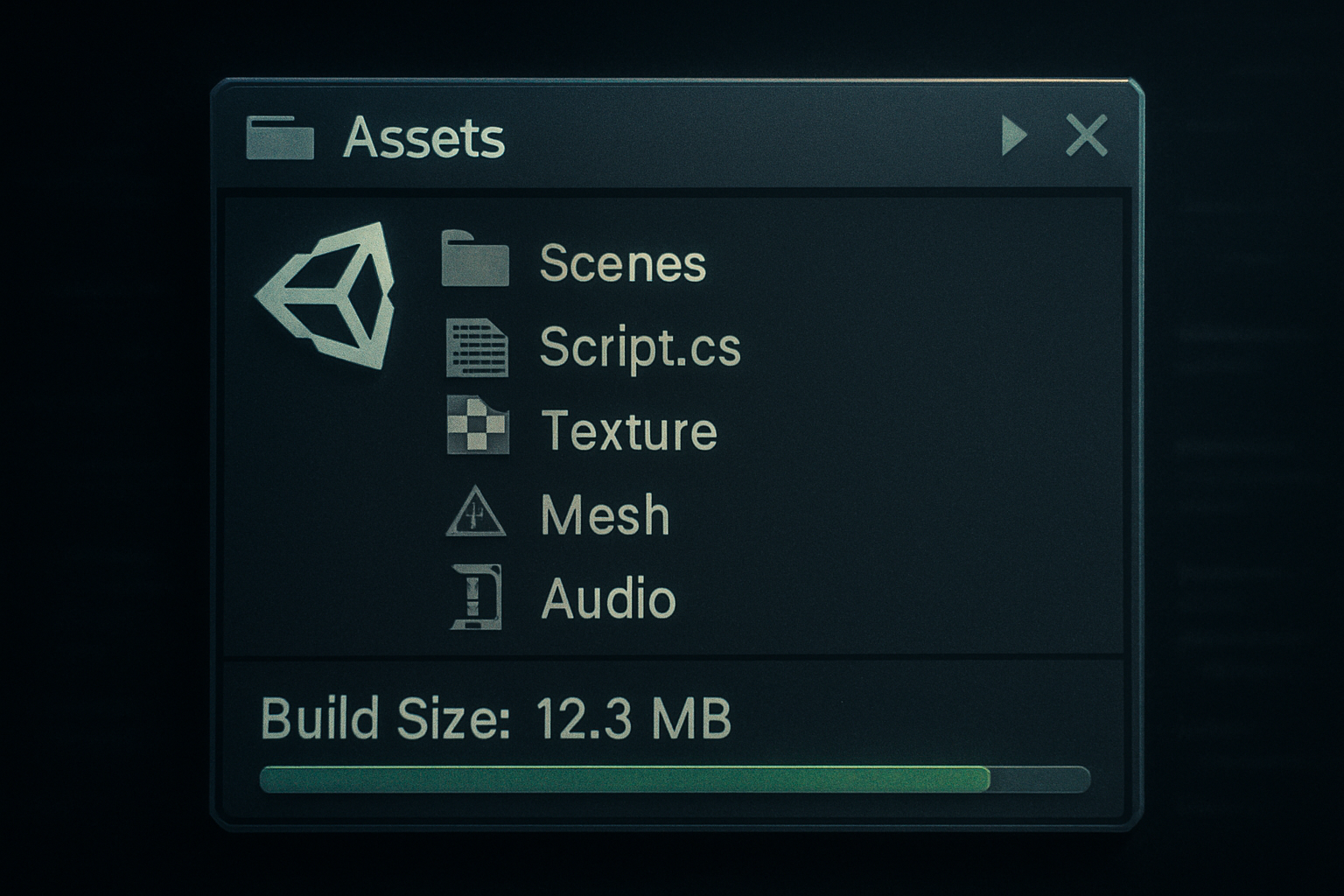
Before we dive into solutions, it’s essential to understand the primary culprits behind large Unity build sizes. Typically, these include:
- Assets: Textures, audio, meshes, animations, and other imported files often constitute the largest portion of your build.
- Code: While usually smaller than assets, inefficient code or unnecessary libraries can add up.
- Unity Engine Modules: Unused modules included in your build can contribute to bloat.
- Player Settings: Incorrect settings for platform-specific optimizations can lead to larger builds.
Step-by-Step Optimization Strategies
1. Asset Compression and Optimization
Assets are almost always the biggest contributors to build size. Optimizing them is your first and most impactful step.
Textures
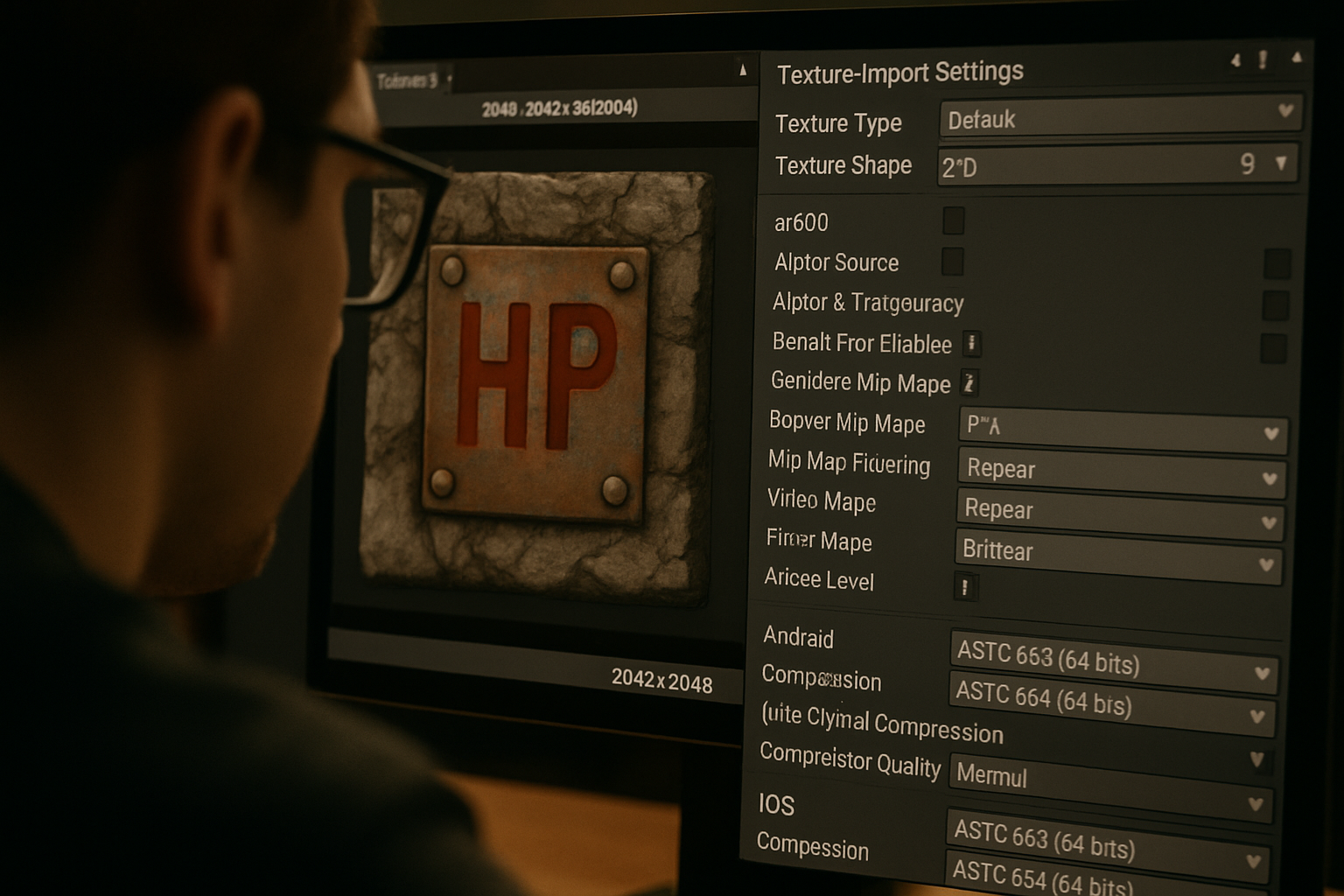
Textures are often the heaviest assets. Unity provides powerful tools to compress them.
- Format: Choose appropriate texture formats. For most platforms,
Compressedformats likeETC2(Android) orPVRTC(iOS) are ideal. For desktop,DXTformats are common. UseRGBA Crunchedfor even smaller sizes, though it might introduce slight artifacts. - Max Size: Reduce the
Max Sizeof textures. Do you really need a 2048×2048 texture for a small UI icon? Often, 512×512 or even 256×256 is sufficient. - Mip Maps: Disable
Generate Mip Mapsfor UI elements or textures that will never be seen at varying distances.
Audio
Audio files can also be significant.
- Compression Format: Use
Vorbisfor most in-game sounds, adjusting theQualityslider. For short, looping sounds or sound effects,ADPCMcan be more efficient. - Load Type: Set
Load TypetoStreamingfor background music to avoid loading the entire file into memory at once.
Meshes and Animations
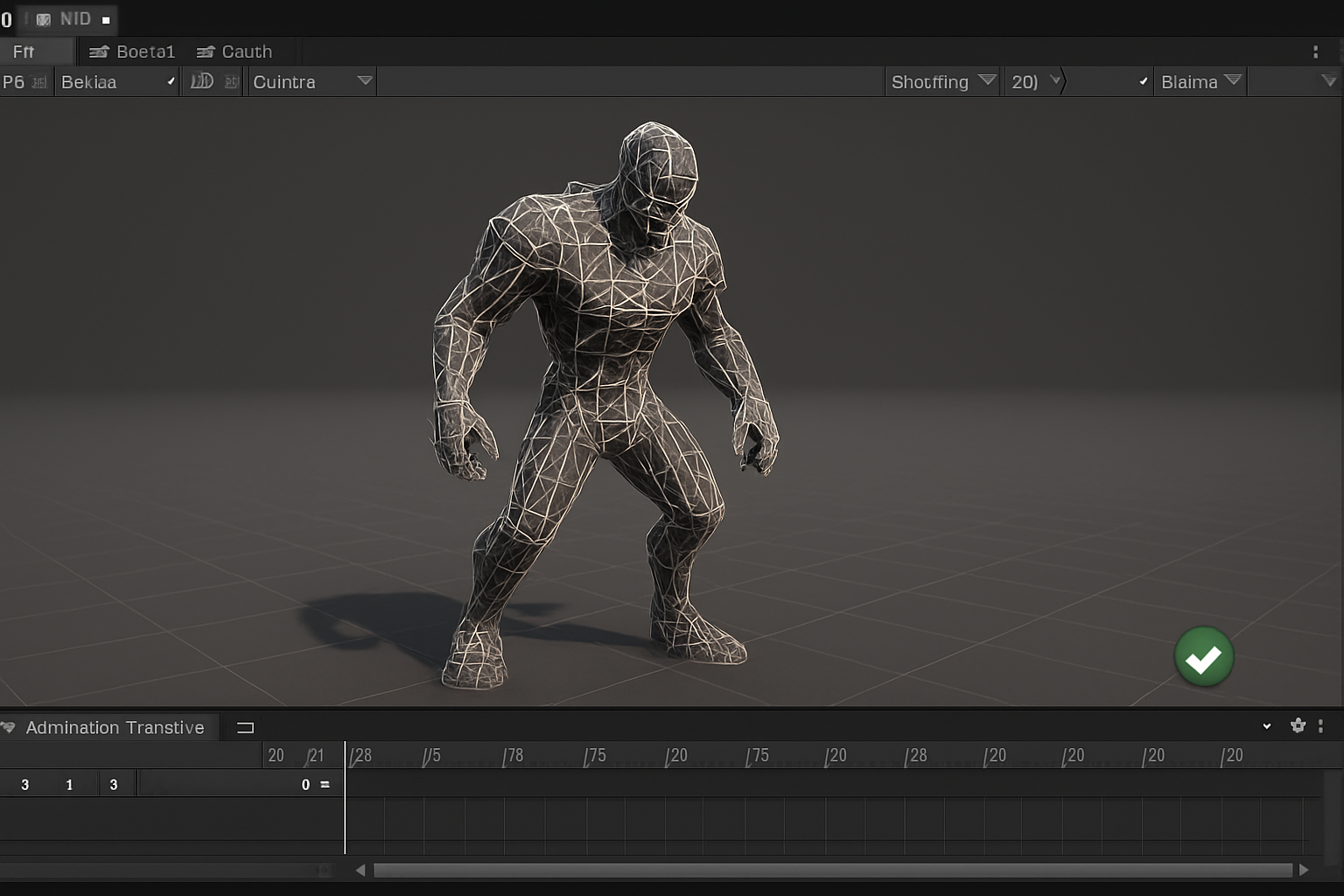
- Mesh Compression: In the
Model Import Settings, enableMesh Compression(Low, Medium, or High). This can significantly reduce mesh data. - Read/Write Enabled: Disable
Read/Write Enabledfor meshes that don’t require runtime access (e.g., procedural generation or deformation). - Animation Compression: For animations, use
Optimalcompression. This often provides the best balance between size and quality.
2. Code Stripping and Optimization
While assets are often the biggest culprits, optimizing your code and how Unity processes it can also yield significant reductions.
Managed Stripping Level
Unity can remove unused code from your managed assemblies (C# scripts). This is controlled in Player Settings > Other Settings > Managed Stripping Level.
- Low: Removes only the most obvious unused code.
- Medium: A good balance, removing more unused code without being too aggressive.
- High: Most aggressive stripping, but can sometimes remove code that is used via reflection or dynamic loading, leading to runtime errors. Test thoroughly!
// Example: If you're not using System.Net, Unity can strip it.
// However, if you dynamically load types, be cautious with High stripping.

// Example of a simple script that might be affected by stripping if not careful
public class MyNetworkManager : MonoBehaviour
{
    void Start()
    {
        // If this method is only called via reflection, stripping might remove it.
        // MethodBase.GetCurrentMethod().Name; // Example of reflection usage
    }
}
Unused Unity Modules
Unity projects often include modules you don’t use (e.g., AI Navigation, Video Player). You can disable these in Window > Package Manager or Edit > Project Settings > Player > Other Settings > Configuration > Scripting Backend (for IL2CPP, check Managed Stripping Level and Strip Engine Code).
3. Effective Scene Management and Asset Bundles
How you structure your scenes and manage assets can have a profound impact on build size.
Scene Splitting
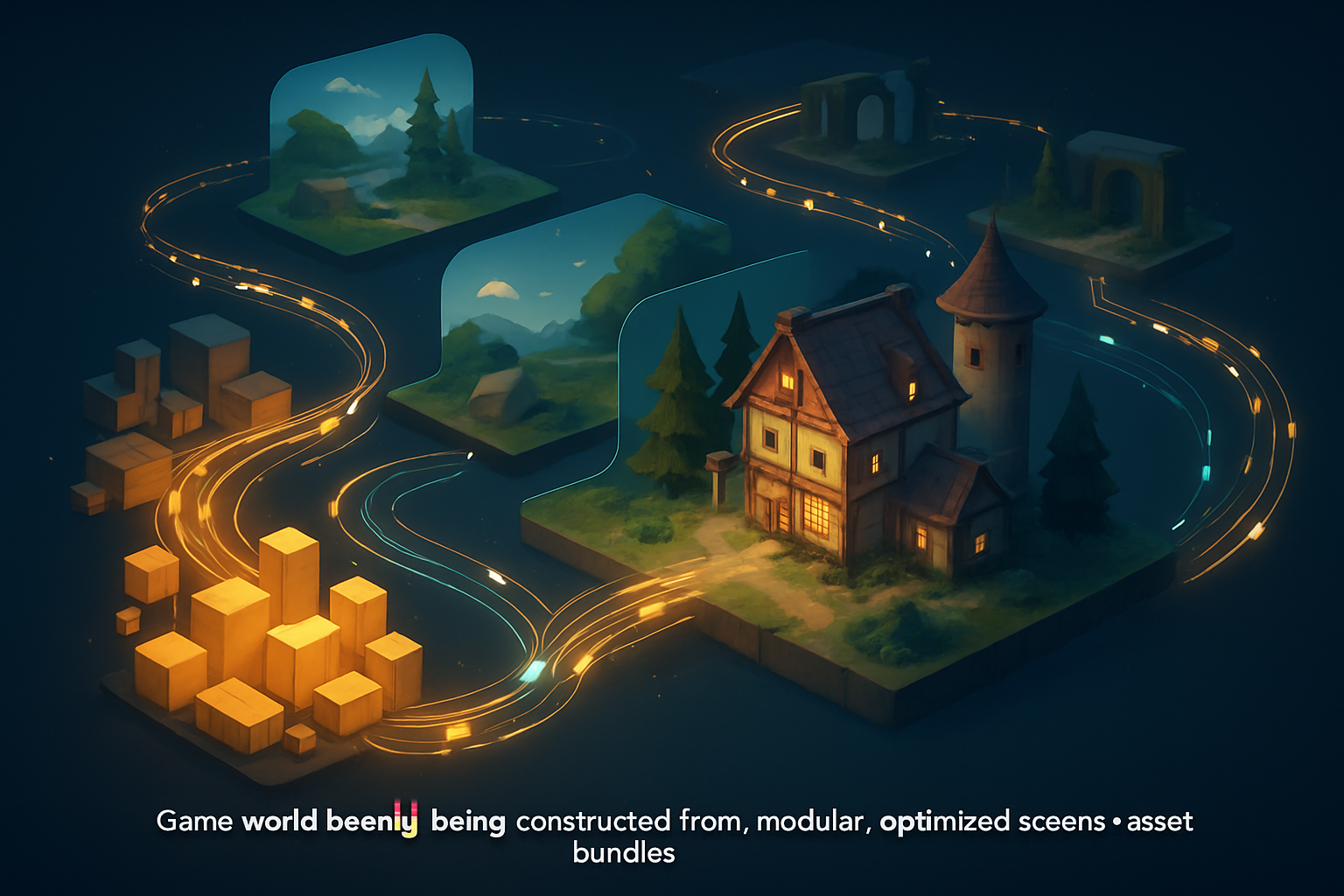
Instead of one massive scene, consider splitting your game into multiple smaller scenes. Load scenes additively when needed. This reduces the initial load size and allows for more granular asset management.
Asset Bundles
For large games with many assets, Asset Bundles are a game-changer. They allow you to package assets and download them on demand, rather than including them all in the initial build. This is particularly useful for DLC, user-generated content, or levels that aren’t immediately accessible.
// Example: Loading an Asset Bundle
IEnumerator LoadAssetBundle(string bundleUrl)
{
    using (WWW www = new WWW(bundleUrl))
    {
        yield return www;
        if (www.error != null)
            throw new Exception("WWW failed: " + www.error);
        AssetBundle bundle = www.assetBundle;
        // Load assets from the bundle
        GameObject myPrefab = bundle.LoadAsset<GameObject>("MyPrefabName");
        Instantiate(myPrefab);
        bundle.Unload(false);
    }
}
Best Practices and Advanced Tips
- Analyze Build Report: Always check your
Editor.logfile after a build (or useWindow > General > Editor.logand search for “Build Report”). This report details exactly what is taking up space in your build, allowing you to pinpoint areas for further optimization. - Don’t Keep Unused Assets: It sounds obvious, but often developers leave unused assets in their project. Unity will include them if they are referenced, even indirectly. Regularly clean up your
Projectfolder. - Texture Atlases: Combine multiple small textures into one larger texture atlas. This reduces draw calls and can improve rendering performance, indirectly helping with build size by optimizing how textures are handled.
- Lightmap Compression: If you’re using baked lightmaps, ensure they are compressed. Just like regular textures, lightmaps can be very large.
- Addressables: For more complex projects, Unity’s Addressable Asset System is a powerful way to manage content. It allows you to load assets by address, whether they are local or remote, providing fine-grained control over what gets included in your build and when it’s loaded. This is an evolution of Asset Bundles, offering more flexibility and easier management.
External Authoritative Links
- For in-depth official documentation on reducing build size, refer to the Unity Manual on Reducing the file size of your build.
- Learn more about general game development optimization principles from industry experts on Gamasutra.
Conclusion
Optimizing your Unity game’s build size is a continuous process, not a one-time fix. By diligently applying these step-by-step strategies—from meticulous asset compression to smart code stripping and advanced asset management with Asset Bundles or Addressables—you can significantly reduce your game’s footprint. A smaller build size translates directly into faster downloads, smoother user experiences, and ultimately, a wider reach for your incredible creations. Start implementing these techniques today and watch your games become leaner, faster, and more accessible than ever before. Happy optimizing!
Call to Action: Ready to build more efficient and engaging Unity games? Share your favorite build size optimization tips in the comments below!