Introduction
In the vast and exciting world of game development, a well-designed inventory system is often the backbone of player interaction and progression. From managing potions in an RPG to organizing crafting materials in a survival game, an intuitive inventory is crucial for an immersive player experience. While Unity offers various ways to build user interfaces, the Unity UI Toolkit stands out as a modern, powerful, and performant solution for creating flexible and scalable UIs. This comprehensive guide will walk you through the process of building an inventory system from scratch using the Unity UI Toolkit, covering everything from fundamental concepts to advanced implementation techniques. Get ready to empower your players with a seamless and engaging inventory experience!
Why UI Toolkit for Your Inventory System?
Before diving into the nitty-gritty of implementation, let’s understand why Unity UI Toolkit is the ideal choice for crafting your inventory system. Traditional Unity UI (uGUI) has served us well, but UI Toolkit brings a host of advantages that make it a superior option for modern game development:
- Performance: UI Toolkit is designed for performance, leveraging a retained-mode UI system that is more efficient for complex UIs, leading to smoother gameplay and faster load times.
- Scalability: Its declarative nature, inspired by web technologies like HTML and CSS, makes it incredibly scalable. You can easily create reusable UI components and manage complex layouts, which is essential for an ever-expanding inventory with diverse item types.
- Flexibility: With UI Toolkit, you have granular control over every aspect of your UI. You can style elements using USS (Unity Style Sheets), a language similar to CSS, allowing for rapid prototyping and consistent visual design across your game.
- Developer Experience: The integration with Unity’s editor, along with features like UI Builder, provides a more intuitive and streamlined workflow for UI creation. This means less time wrestling with UI elements and more time focusing on core gameplay mechanics.
Consider a game like Stardew Valley or Minecraft, where players spend a significant amount of time interacting with their inventories. The responsiveness and visual clarity of these systems are paramount to the player experience. UI Toolkit provides the tools to achieve that level of polish and functionality.
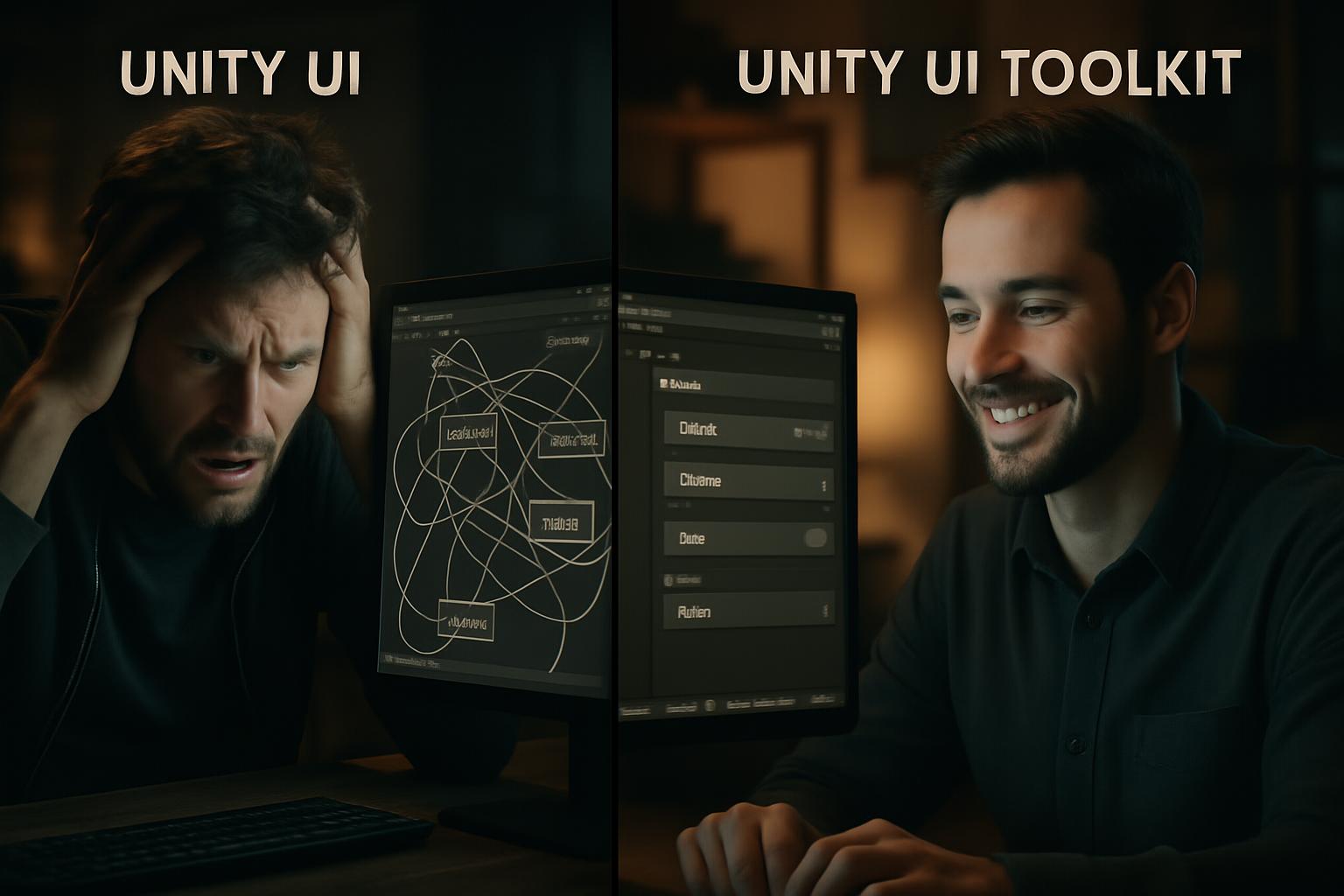
Image Prompt for UI Toolkit Benefits: A split image showing two contrasting scenes: one side depicts a cluttered, inefficient traditional Unity UI workflow with tangled lines and frustrated developer, while the other side shows a clean, organized Unity UI Toolkit workflow with a happy, productive developer and sleek UI elements. Cinematic style, 16:9 aspect ratio.
Core Components of an Inventory System with UI Toolkit
Building an inventory system involves several interconnected components. Here, we’ll break down the essential parts and how to implement them using Unity UI Toolkit.
1. Item Data Structure (ScriptableObjects)
At the heart of any inventory system is the item data. ScriptableObjects are an excellent choice for defining your items because they are data containers that can be created as assets in your project, independent of any GameObject. This makes them highly reusable and easy to manage.
Let’s define a basic Item ScriptableObject:
using UnityEngine; // Make sure to include UnityEngine

[CreateAssetMenu(fileName = "NewItem", menuName = "Inventory/Item")]
public class Item : ScriptableObject
{
    public string itemName = "New Item";
    public Sprite icon = null;
    public bool isDefaultItem = false;
    // Add more item properties as needed, e.g., description, stack size, weight
}
This Item class allows you to create individual item assets (e.g., ‘Health Potion’, ‘Iron Sword’) in your Unity project, each with its own name, icon, and other properties.
2. Inventory Management (C# Class)
Next, you’ll need a class to manage the inventory itself – adding items, removing items, and notifying the UI of changes. This class will typically hold a list of Item objects.
using System.Collections.Generic;
using UnityEngine;

public class Inventory : MonoBehaviour
{
    public static Inventory instance;

    public delegate void OnItemChanged();
    public OnItemChanged onItemChangedCallback;

    public List<Item> items = new List<Item>();
    public int space = 20; // Max number of items in inventory

    void Awake()
    {
        if (instance != null)
        {
            Debug.LogWarning("More than one instance of Inventory found!");
            return;
        }
        instance = this;
    }

    public bool Add(Item item)
    {
        if (!item.isDefaultItem)
        {
            if (items.Count >= space)
            {
                Debug.Log("Not enough inventory space.");
                return false;
            }
            items.Add(item);

            if (onItemChangedCallback != null)
                onItemChangedCallback.Invoke();
        }
        return true;
    }

    public void Remove(Item item)
    {
        items.Remove(item);

        if (onItemChangedCallback != null)
            onItemChangedCallback.Invoke();
    }
}
This Inventory class uses a delegate and event (onItemChangedCallback) to notify any subscribed UI elements whenever an item is added or removed. This is a crucial pattern for keeping your UI synchronized with your game logic.
3. UI Layout with UI Builder
The UI Builder is a visual tool within Unity that allows you to design your UI layouts using a drag-and-drop interface. You’ll create a .uxml file (Unity XML) for your inventory panel.
Imagine a simple inventory layout: a main panel, a grid for item slots, and perhaps a details panel for selected items. You can drag VisualElements, Labels, Images, and Buttons from the Library into your canvas. Use the Inspector to adjust properties like size, position, and styling.
For an inventory grid, you might use a VisualElement with a flex-direction of row and flex-wrap set to wrap to automatically arrange item slots. Each item slot itself would be a custom VisualElement containing an Image for the item icon and a Label for stack count.
4. Connecting UI to Logic (C# Script)
Finally, you’ll write a C# script to bridge your UI Toolkit elements with your Inventory logic. This script will query the UI Document, find your UI elements by name, and update them based on the Inventory’s state.
using UnityEngine;
using UnityEngine.UIElements;

public class InventoryUI : MonoBehaviour
{
    public UIDocument uiDocument;
    private VisualElement inventoryRoot;
    private VisualElement itemsParent;

    void OnEnable()
    {
        inventoryRoot = uiDocument.rootVisualElement;
        itemsParent = inventoryRoot.Q<VisualElement>("ItemsParent"); // Assuming you named your items container "ItemsParent" in UI Builder

        Inventory.instance.onItemChangedCallback += UpdateUI;
        UpdateUI();
    }

    void OnDisable()
    {
        Inventory.instance.onItemChangedCallback -= UpdateUI;
    }

    void UpdateUI()
    {
        // Clear existing items
        itemsParent.Clear();

        // Populate with current inventory items
        foreach (Item item in Inventory.instance.items)
        {
            VisualElement itemSlot = CreateItemSlot(item);
            itemsParent.Add(itemSlot);
        }
    }

    VisualElement CreateItemSlot(Item item)
    {
        // This is a simplified example. In a real scenario, you'd likely have a reusable UXML template for item slots.
        VisualElement slot = new VisualElement();
        slot.style.width = 64;
        slot.style.height = 64;
        slot.style.backgroundColor = new Color(0.2f, 0.2f, 0.2f, 0.5f);
        slot.style.borderTopWidth = slot.style.borderBottomWidth = slot.style.borderLeftWidth = slot.style.borderRightWidth = 1;
        slot.style.borderTopColor = slot.style.borderBottomColor = slot.style.borderLeftColor = slot.style.borderRightColor = Color.gray;
        slot.style.alignItems = Align.Center;
        slot.style.justifyContent = Justify.Center;

        Image itemIcon = new Image();
        itemIcon.image = item.icon.texture; // Assuming item.icon is a Sprite
        itemIcon.style.width = 50;
        itemIcon.style.height = 50;
        slot.Add(itemIcon);

        // Add click handling for the item slot (e.g., to display item details)
        slot.RegisterCallback<ClickEvent>(evt => Debug.Log($"Clicked on {item.itemName}"));

        return slot;
    }
}
This InventoryUI script subscribes to the onItemChangedCallback from the Inventory class. Whenever the inventory changes, UpdateUI is called, which clears and repopulates the UI with the current items. The CreateItemSlot function dynamically creates VisualElements for each item, displaying its icon. For more complex interactions like drag-and-drop, you would delve into UI Toolkit’s Manipulators and event system.
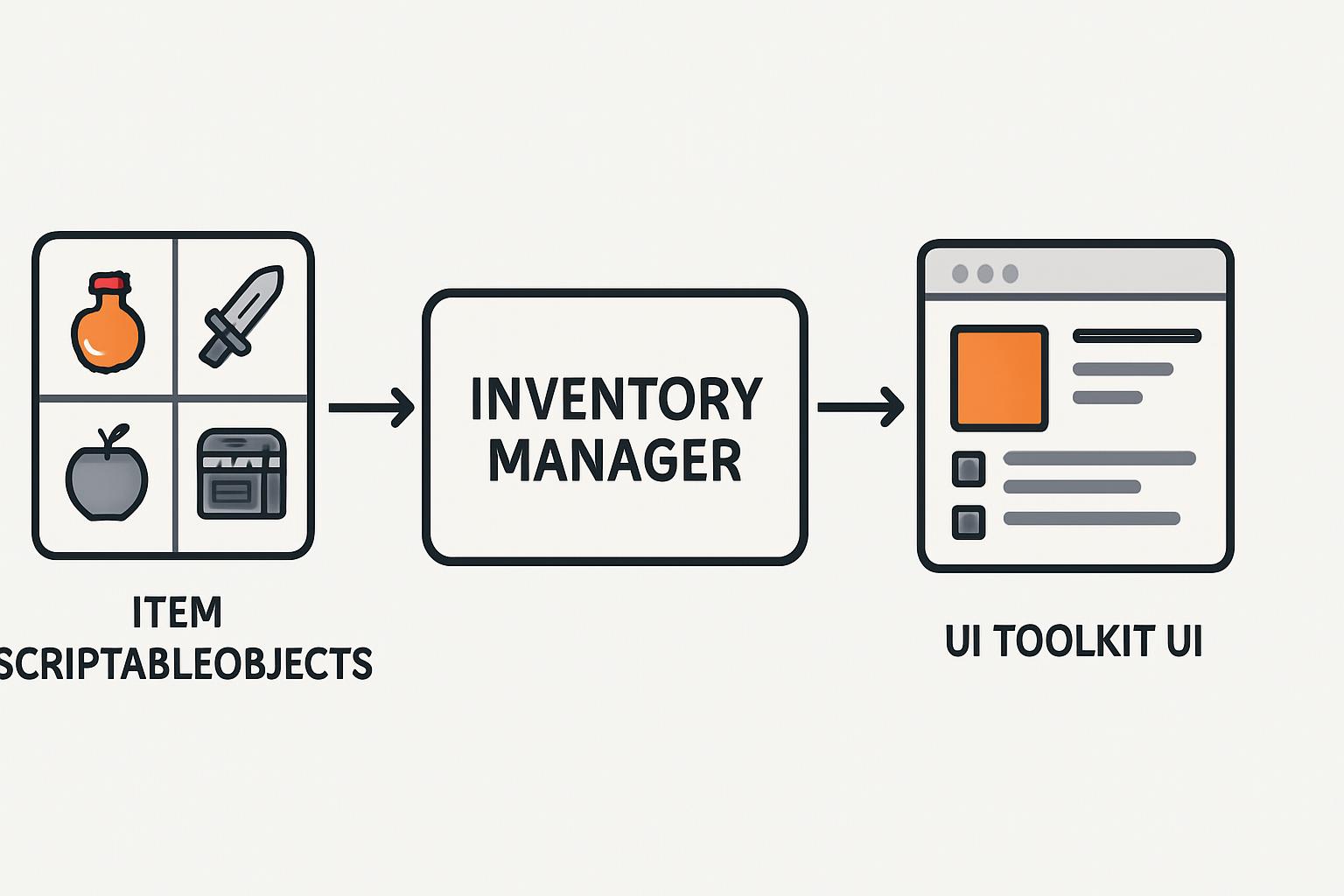
Image Prompt for Inventory System Components: A conceptual diagram illustrating the flow of data in a Unity inventory system: a central ‘Inventory Manager’ box connected to ‘Item ScriptableObjects’ (represented by small icons) and ‘UI Toolkit UI’ (represented by a stylized UI panel). Arrows show data flow. Clean, modern, infographic style. 16:9 aspect ratio.
Best Practices and Advanced Techniques
Building a functional inventory system is just the beginning. To create a truly robust and user-friendly system, consider these best practices and advanced techniques:
•Modular Design: Break down your inventory into smaller, manageable modules. For example, separate item data, inventory logic, and UI presentation into distinct classes. This improves code readability, maintainability, and reusability. This approach is similar to how you might structure your game logic for Unity animation tips.
•Drag-and-Drop Functionality: A common feature in inventory systems is drag-and-drop. UI Toolkit provides Manipulators that allow you to easily implement custom interactions like dragging items between slots or from the inventory to the game world. This involves handling PointerDownEvent, PointerMoveEvent, and PointerUpEvent to track the item’s movement.
•Tooltips and Item Details: When a player hovers over an item, a tooltip displaying detailed information (description, stats, etc.) is essential. You can achieve this by registering PointerEnterEvent and PointerLeaveEvent callbacks on your item slots to show and hide a separate tooltip VisualElement.
•Persistence: For your inventory to save between game sessions, you’ll need to implement a persistence mechanism. This could involve serializing your inventory data to JSON, XML, or using Unity’s built-in PlayerPrefs for simpler cases. For more complex games, consider external databases or cloud saving solutions.
•Performance Optimization: While UI Toolkit is performant, large inventories with many items can still impact performance. Optimize by:
•Virtualization: Only render visible item slots, especially for inventories with hundreds or thousands of items. This is a more advanced technique but can significantly improve performance.
•Object Pooling: Reuse VisualElements for item slots instead of creating and destroying them constantly. This reduces garbage collection overhead.
•Accessibility: Design your UI with accessibility in mind. Ensure keyboard navigation is possible, and consider options for colorblind players or those with other visual impairments. Unity’s UI Toolkit offers features to help with this, such as focus management.
•Testing: Thoroughly test your inventory system. Test adding, removing, stacking, and unstacking items. Test edge cases like full inventories, empty inventories, and invalid item interactions. Consider using Unity’s Test Runner for automated UI tests.
For further reading on UI/UX best practices in game development, you might find this Gamasutra article on Designing Game UI insightful. Additionally, the official Unity UI Toolkit documentation is an invaluable resource for in-depth information and examples.
Image Prompt for Best Practices: A clean, organized workspace with a Unity project open, showing well-structured code and a polished UI. Subtle visual cues indicating modularity, efficiency, and user-friendliness (e.g., gears, checkmarks, a happy user icon). Cinematic style, 16:9 aspect ratio.
Conclusion
Building an inventory system from scratch with Unity UI Toolkit might seem like a daunting task, but by breaking it down into manageable components and leveraging the power of UI Toolkit, you can create a highly functional, performant, and visually appealing system. From defining your item data with ScriptableObjects to connecting your UI with C# logic, you now have a solid foundation to build upon.
The flexibility and scalability of UI Toolkit make it an excellent choice for any game developer looking to create modern and engaging user interfaces. So, what are you waiting for? Start experimenting, iterating, and building your own unique inventory systems today. Empower your players with seamless interaction and watch your game worlds come alive!
Start building modular games today and revolutionize your player experience!