Introduction:
Unity is one of the most powerful and flexible game development frameworks with many tools at its disposal to streamline your workflows to be as efficient as possible. Out of all the tools at your disposal, Layers and Tags are probably the two most important to a developer to master in Unity. These basic features powerfully facilitate interaction at an organizational level within your projects, from collision detection to pretty specific object filtering.
What does this article entail? We will cover layers and tags in Unity. We shall go over why they are so important and, in doing so, explain how to use them for good, offering some practical examples that render them easier and less bumpy to the game development journey.
What Are Layers in Unity?
Layers in Unity group GameObjects together. This causes all physics calculations to be optimized, rendering to be optimized, and more as it determines which objects interact with other objects or even which objects the camera can see.
For instance, let’s say that you have this huge scene where you would want your camera to disregard background elements and even the ability of some objects to interact with each other. Layers control such scenarios.
Creating and Using Layers in Unity
Creating a New Layer
- To create a new layer navigate to the Inspector window by selecting a GameObject.
- Select the Layer dropdown, and you should see an option to add a new layer.
- You will then be allowed to create as many as 32 custom layers within a new window.
Setting a Layer:
- You can select any GameObject in your scene.
- With the Layer dropdown in the Inspector, choose your newly created layer for the object to be placed there.
Physics and Layer-Based Interactions:
- The glory of layers lies in controlling interactions between objects. To configure the Layer Collision Matrix, go to Edit > Project Settings > Physics.
- This determines which layers can be colliding with one another. For example, you might want a player character to collide with your enemies but not with all the background elements: trees or terrain.
Practical Example: Making Use of Layers to Optimize Collision Detection
Having in mind that you’re designing a 2D platformer, the following background objects such as trees, mountains, etc., and interactive ones such as enemies and collectibles are available for use. In addition to it all background objects can be positioned in “Background” layer, then other type objects, like player, enemies and collectibles can be placed into different layers, for example “Player”, “Enemies” and “Collectibles”.
- Step 1: Create layers for “Background,” “Player,” “Enemies,” and “Collectibles.”
- Step 2: Assign objects to their corresponding layers.
- Step 3: In the Layer Collision Matrix, disable interactions between the “Background” layer and other layers. This prevents unnecessary collision checks, optimizing performance.
What Are Tags in Unity?
It’s quite essential while using layers to group objects and control physics, while tags are for tagging specific GameObjects. Tags are very useful when one identifies particular objects, especially in scripting, where you would not have to manually assign or check individual objects.
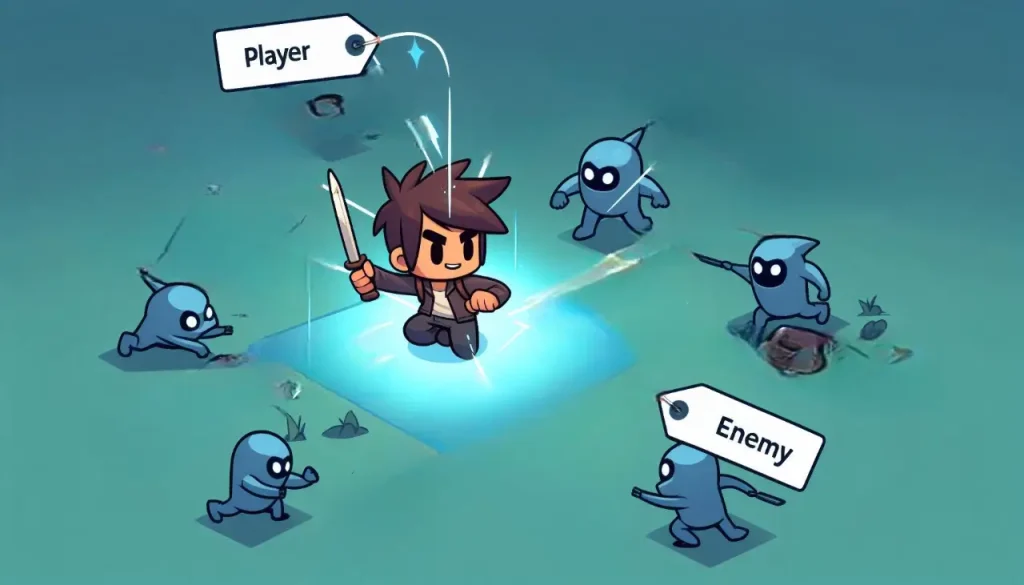
For instance, you might search for a player object by name or by its properties, instead you can assign that object as Player, and with this tag easily come across that object from your script.
How to Create and Use Tags in Unity
- Creating a New Tag:
- Go to the Inspector window and click on the Tag dropdown.
- From the dropdown, click on Add Tag to create a new tag.
- In the Tag Manager, add a new tag by typing a name and saving it.
- Assigning a Tag:
- After creating a tag, assign it to a GameObject by selecting the object, going to the Tag dropdown, and choosing the tag.
- Using Tags in Scripts:
- Tags are incredibly useful in Unity scripts. For example, when checking for collisions or specific triggers, you can detect objects by their tag.
Example: Detecting the Player with Tags in Unity
A very common usage of tags is for detecting collisions among players. Suppose you have a player character tagged as “Player” and an enemy object that needs to make the game over if it hits the player character.
Here’s a simple script that would detect if the colliding object is the player using tags:
void OnCollisionEnter2D(Collision2D collision)
{
    if (collision.gameObject.tag == "Player")
    {
        // Trigger game over logic
        Debug.Log("Game Over!");
    }
}
In this example, the script checks the tag of the object involved in the collision. If the tag is “Player,” the game-over logic is triggered.
Combining Layers and Tags for Efficient Workflow
Layers and Tags in Unity Layers and tags, together, streamline your organization and performance in the game. This is how you use them together:
- Tags for Identification: These tags identify particular objects in your game, be they the player, enemies, or interactables.
- Layers for Optimization: Layers allow you to globally govern interactions among large groups of objects, thus improving performance.
For example, you might assign enemies the tag “Enemy” and place them on an “Enemies” layer. You can then use the “Enemy” tag in your scripts to trigger all sorts of behaviors, but Layer Collision Matrix ensures that enemies won’t collide with each other or other background elements, only with the player.
Advanced Gameplay Using Layers and Tags
As your game goes more complex, Layers and Tags are very much more indispensable. Here are some advanced use cases:
Camera Culling with Layers
You can control what objects are visible to the camera by changing the Culling Mask in camera settings. You could, for instance, make a UI layer visible only to the UI camera so the game camera ignores everything drawn inside the UI layer, which would make it render much faster.
Raycasting using Tags and Layers
In Unity, you use Raycasting to detect if an object is in front of your camera based on a position on the screen. As a further enhancement, Unity enables you to use tags and layers when using Raycasting.ct objects along a specific path. By combining layers and tags, you can filter which objects the ray should detect.
RaycastHit hit;
if (Physics.Raycast(transform.position, transform.forward, out hit, 100f))
{
    if (hit.collider.gameObject.tag == "Enemy" && hit.collider.gameObject.layer == LayerMask.NameToLayer("Enemies"))
    {
        // Execute hit logic
        Debug.Log("Hit an enemy!");
    }
}
In this script, the raycast detects if the object hit is both tagged as “Enemy” and on the “Enemies” layer.
Best Practices to Use Layers and Tags in Unity
- Keep them organized: Layers and tags may become a little difficult to follow in larger projects. It’s always wise to assign them a consistent name and note how they have been utilized.
- Use Layers for Performance : Use layers only when necessary for interaction and rendering. In reality, one should never have too many layers-they can even make the project confusing.
- Leverage Tags for Specific Interactions: Tags are very handy when you’re dealing with specific, individual interactions, such as identifying the player or critical game objects.
Conclusion
In this article, we covered the fundamental roles of Layers and Tags in Unity. These tools are pretty mighty in optimizing performance, organizing objects and streamlining interactions. So, with creative combination, you can hold even very complex games smoothly and experience a simpler workflow during development.
Whether you’re using layers to identify collisions effectively or tags to select important objects, you can bet these tools will advance your Unity development skills considerably. As you keep working on building projects with Unity:lding more complex projects, take full advantage of these features to create well-optimized and highly organized games.